
Train a model in OpenPond Desktop
Turn reviewed chats into a Taskset, train a model, evaluate it, and decide whether to use it.
OpenPond Desktop can turn work you have already reviewed into a reusable model. You choose the evidence, approve what may be used, check the resulting Taskset, and approve the exact training run before any model training starts.
If Continuous learning found a recurring pattern, you can approve its Taskset recommendation in Chat. The Taskset Authoring skill then carries the cited evidence, proposed graders, synthetic-expansion plan, and likely training signal into the same review flow described below.
The workflow is:
reviewed chats → Taskset → evals and readiness → training run → result → use or promoteBefore you start
You need:
- OpenPond Desktop with a Profile selected.
- Several completed chats that demonstrate the behavior you want the model to learn.
- Permission to use the selected chat content for training.
- A training destination available to your account. The run setup shows the compute location and maximum spend before launch.
Prefer a small set of clear, representative examples over a large collection of noisy chats. Remove secrets, personal data, and content you do not have permission to export.
1. Choose the work to learn from
Open a strong example chat and enter /train. Add other reviewed chats that show the same repeated task. OpenPond does not silently treat all of your conversations as training data: only the evidence you select is proposed for this Taskset.
If you already have a Taskset, open Lab → Tasksets instead and continue with the readiness checks below.
Before authoring begins, review the evidence list and approve the disclosure boundary. Confirm that the selected chats are relevant and safe to use.
2. Review the Taskset
Open the proposed Taskset in Lab → Tasksets and check:
- Examples: the input and expected output describe the task you actually want.
- Sources: every example has understandable lineage back to reviewed evidence.
- Graders: success is measured by the right rule, rubric, or verifier.
- Splits: frozen evaluation examples are not reused as training examples.
- Readiness: blocking issues are resolved before you start a run.
Revise or remove weak examples instead of training through a readiness warning. Run the Taskset evals and compare the baseline before spending on training.
3. Create the model and a run
Open Lab → Models, choose Create → Model, and give the model a durable name and objective. From the model, add a training run and complete the setup in order:
- Select the ready Taskset.
- Choose the supported training method. Use SFT for demonstrations; use preference or reward methods only when the Taskset and destination support them.
- Choose the starting model, compute, and destination.
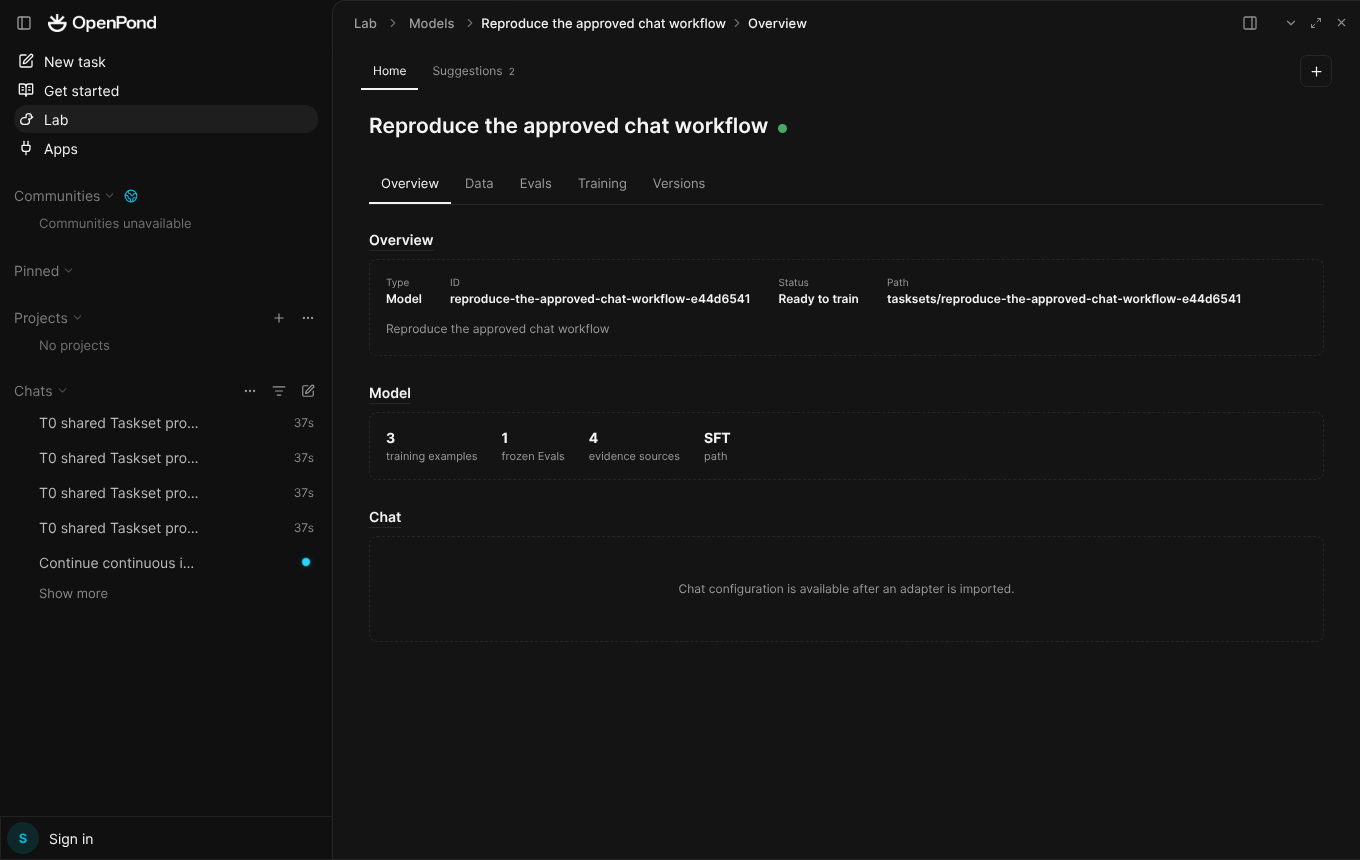
Confirm the Taskset, frozen eval count, evidence count, method, and ready state before opening the run.
4. Approve the exact run
Review the final run summary carefully. It is the boundary between preparing local evidence and starting billable training. Confirm:
- the Taskset revision and content hash;
- the training method and starting model;
- where compute runs and what data leaves the device;
- artifact retention and destination;
- the quote and maximum spend.
Choose Start training only after those values match your intent. OpenPond keeps the run attached to the model so its Taskset, configuration, artifacts, and later decisions remain inspectable.
5. Inspect the result
The Training tab shows run state, method, compute, duration, metrics, and produced artifacts. A completed job is not automatically a good model: compare its frozen evaluation to the baseline and inspect any failed graders.
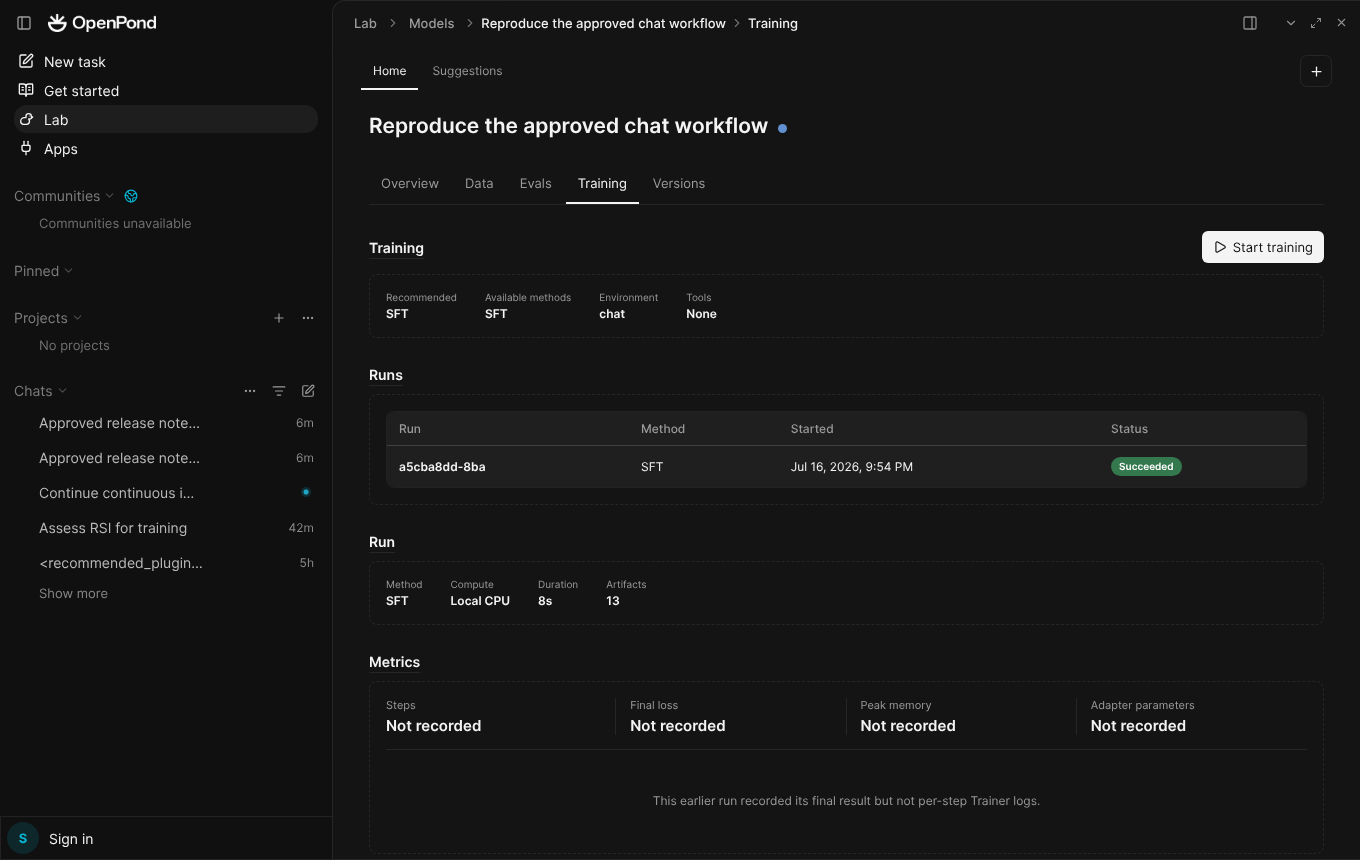
A succeeded run means training completed; the frozen evaluation determines whether it is good enough to use.
The Versions tab keeps the candidate and artifact lineage together.
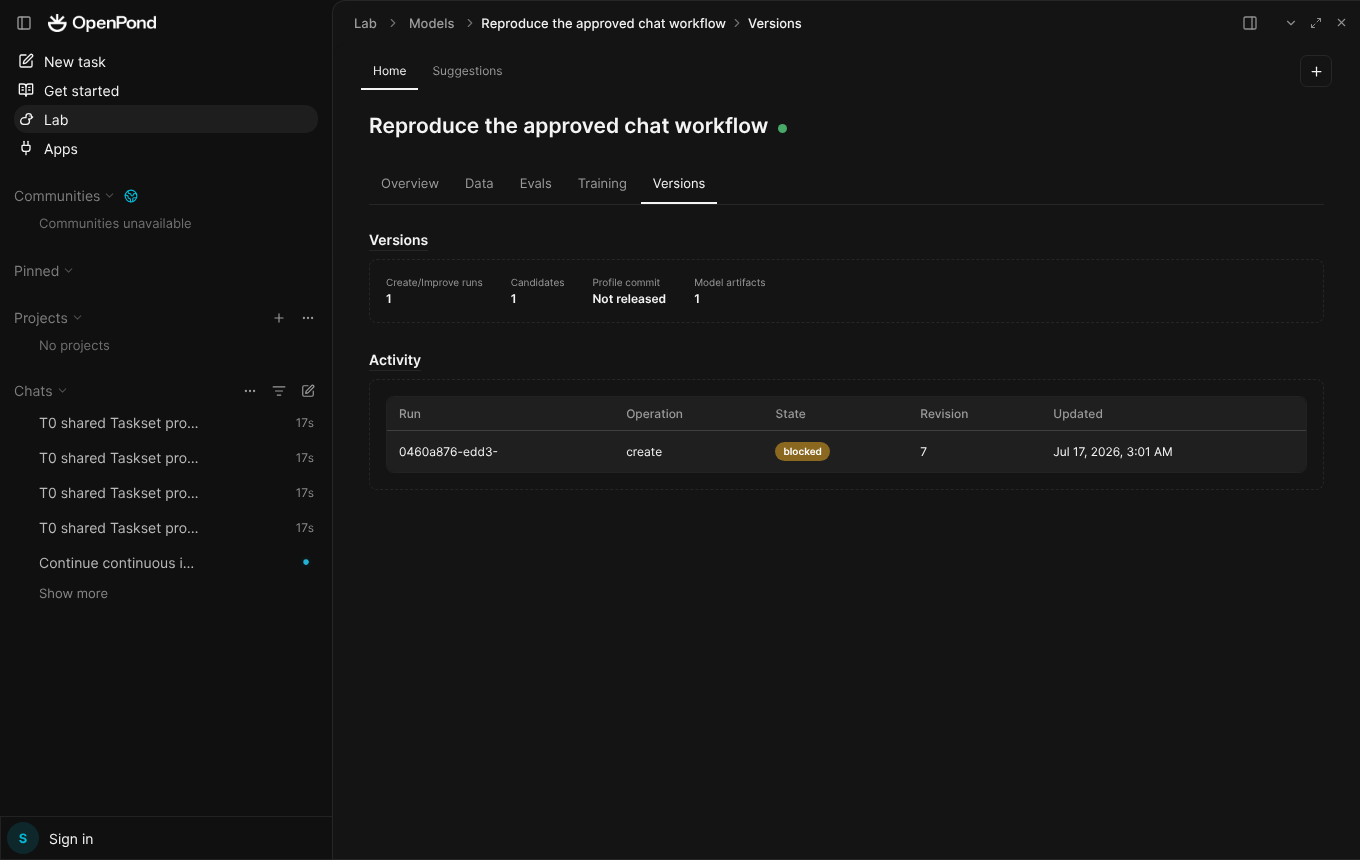
Use Versions to trace the candidate back to its create/improve run and imported artifact.
6. Chat with, serve, or promote the model
After an adapter is imported, use the model's Chat action for a qualitative check. Use Lab → Serving to inspect deployment state and Lab → Usage to review consumption.
Promotion is intentionally gated. Bind the model to a role only when the frozen evaluation passes your threshold and the rollback target is clear.
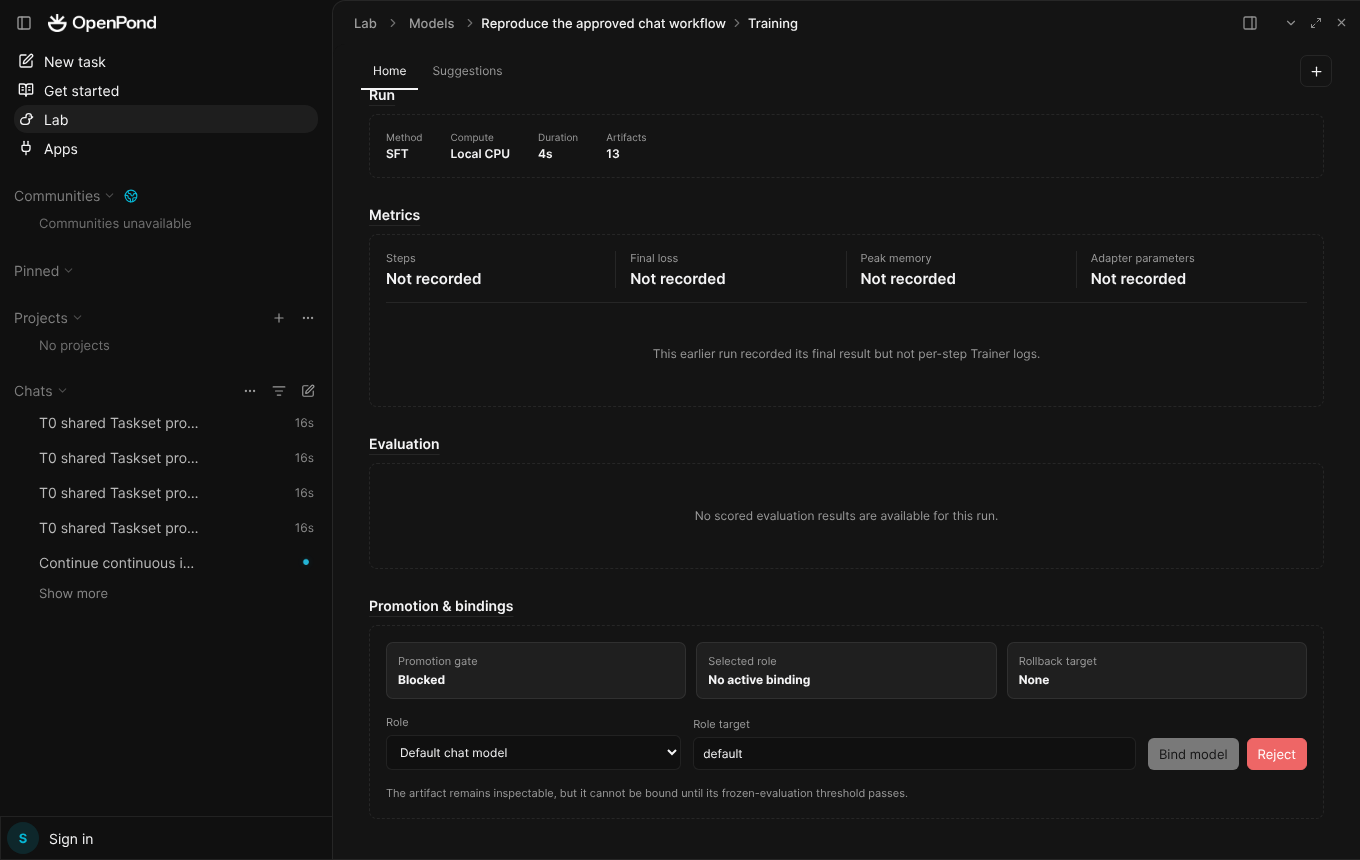
A blocked promotion gate protects the active binding; fix the evaluation evidence instead of bypassing it.
Keep the candidate unbound when it regresses, lacks evaluation evidence, or solves the wrong task. You can revise the Taskset and create another run without losing the earlier lineage.
Troubleshooting
- No useful chats appear: finish and review representative chats in the active Profile, then start
/trainagain. - Taskset is not ready: open its readiness details and fix missing examples, graders, or frozen eval coverage.
- A method is unavailable: the selected Taskset or destination does not support it; choose a compatible method rather than changing the evaluation goal.
- Training cannot start: recheck the destination, approval boundary, quote, and account limits shown in the run editor.
- Promotion is blocked: inspect the frozen evaluation and binding requirements on the model result.
Want to automate isolated work around your model pipeline? Continue with the Sandbox SDK quickstart.