
How to Connect Your ChatGPT Subscription to OpenPond
If you already pay for ChatGPT, you can connect that account directly to OpenPond. The connection uses OpenAI's sign-in flow, so you do not need to create an API key or add separate Platform credit just to use the models made available through your ChatGPT account.
This guide uses the current OpenPond app and real account states captured on August 21, 2026.
<video src="/blog/connect-chatgpt-subscription/openpond-chatgpt-connection-walkthrough.mp4" poster="/blog/connect-chatgpt-subscription/openpond-chatgpt-connection-walkthrough-poster.jpg" controls playsinline
Open the account menu, choose Settings, open Providers, and select the OpenAI subscription connection.
A ChatGPT subscription and OpenAI API billing are separate. Choose Subscription for your ChatGPT account. Choose API only when you want requests billed through an OpenAI Platform API key.
Before you connect
You need:
- A working OpenPond installation.
- An OpenAI account with the ChatGPT access you intend to use.
- A browser in which you can sign in to that OpenAI account.
Install and start OpenPond if you have not already:
npm install --global openpond
openpond
You can also download the current build from OpenPond releases.
1. Open the account settings
In OpenPond, open your account menu at the bottom of the sidebar and select Settings. Then choose Providers in the settings navigation.
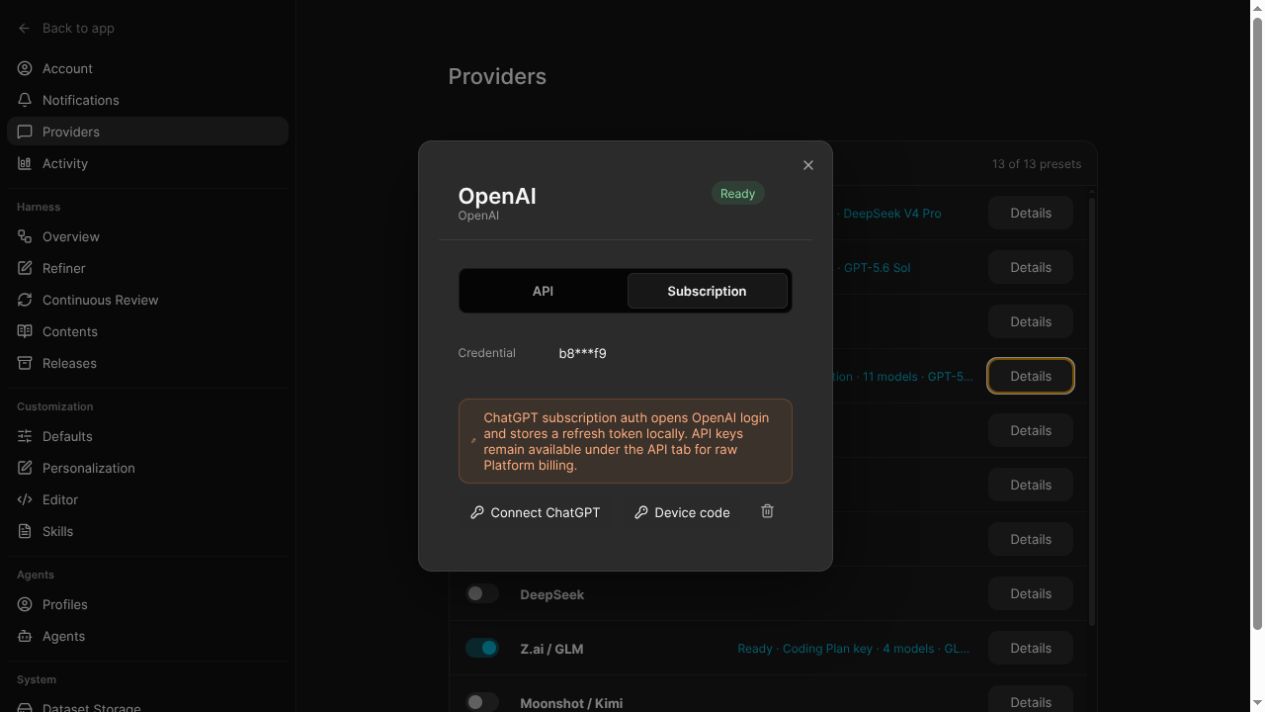
The Providers page lists every configured model provider and its current state. Find OpenAI and select Details.
2. Choose Subscription
The OpenAI provider has two separate modes:
- Subscription connects your ChatGPT account.
- API stores an OpenAI Platform API key for usage billed by the API.
Select Subscription, then choose Connect ChatGPT.
Use Connect ChatGPT for the normal browser flow. Device code is available when the browser redirect is inconvenient.
OpenPond opens OpenAI's authorization page in your browser. Sign in to the OpenAI account that owns your ChatGPT subscription and approve the connection. Return to OpenPond when authorization is complete.
If the normal browser flow cannot return to the app, choose Device code instead and follow the displayed instructions. Never paste the device code, access token, refresh token, or account credential into a chat, issue, log, or screenshot.
3. Verify the connection
A successful connection gives you three useful signals:
- The OpenAI dialog shows Ready.
- The Providers list shows Ready · Subscription for OpenAI.
- The validation message says OpenAI ChatGPT subscription connected.
Close Settings, open the model picker in a new Chat or Work task, choose OpenAI as the provider, and select one of the models available to your account. The exact model list can change with your OpenAI account and current access.
What OpenPond stores
The ChatGPT connection stores a refresh token locally so OpenPond can renew the session. It does not turn the subscription into an API key, and it does not move API billing onto the subscription.
Treat the local OpenPond data directory like any other credential-bearing app data: keep it private, exclude it from source control and backups you share, and do not copy its contents into support requests.
Reconnect or disconnect
Return to Settings → Providers → OpenAI → Subscription whenever you need to manage the connection.
- Choose Connect ChatGPT again if OpenAI reports that the sign-in expired or was invalidated.
- Use the trash button to remove the stored ChatGPT credential from OpenPond.
- Switch to the API tab only when you deliberately want Platform API billing instead.
If OpenAI is connected but a particular model is missing, first confirm that the same model is available to the connected account. Account access and model availability are controlled by OpenAI; OpenPond only shows the models available through the configured provider.
Once the provider reads Ready, your ChatGPT subscription is connected and you can use it from both Chat and Work tasks in OpenPond.